Setup guide · ~10 minutes
Connect Google Play
Google splits this across two consoles — Google Cloud (where the key lives) and Play Console (where you grant it access). Every step below says which one you're in. The result is read-only: Reevee can download reports, never change anything.
Open Google Cloud Console
console.cloud.google.com
Sign in with the Google account that owns (or has admin on) your Play Console. In the project picker at the top, create a new project — name it something like 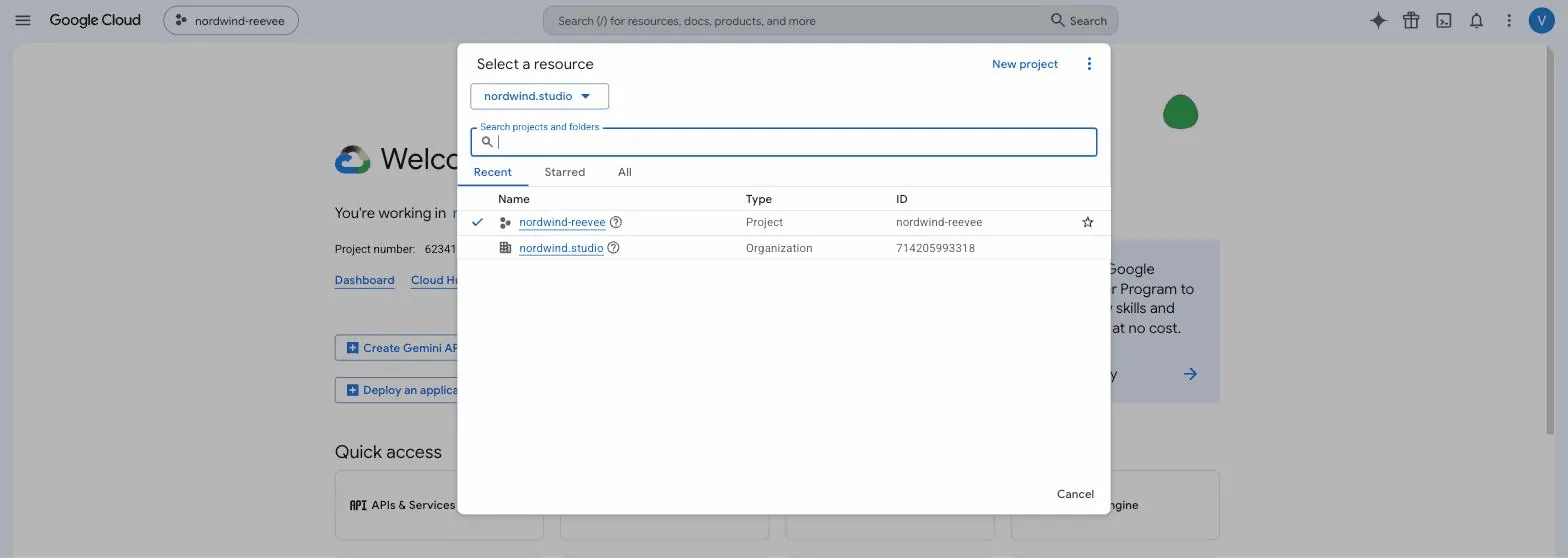 GUIDE
GUIDE
reevee-integration — or select an existing one you use for Play APIs.Enable the Play Developer API
Cloud Console→APIs & Services→Library
Search the library for Google Play Android Developer API and click Enable.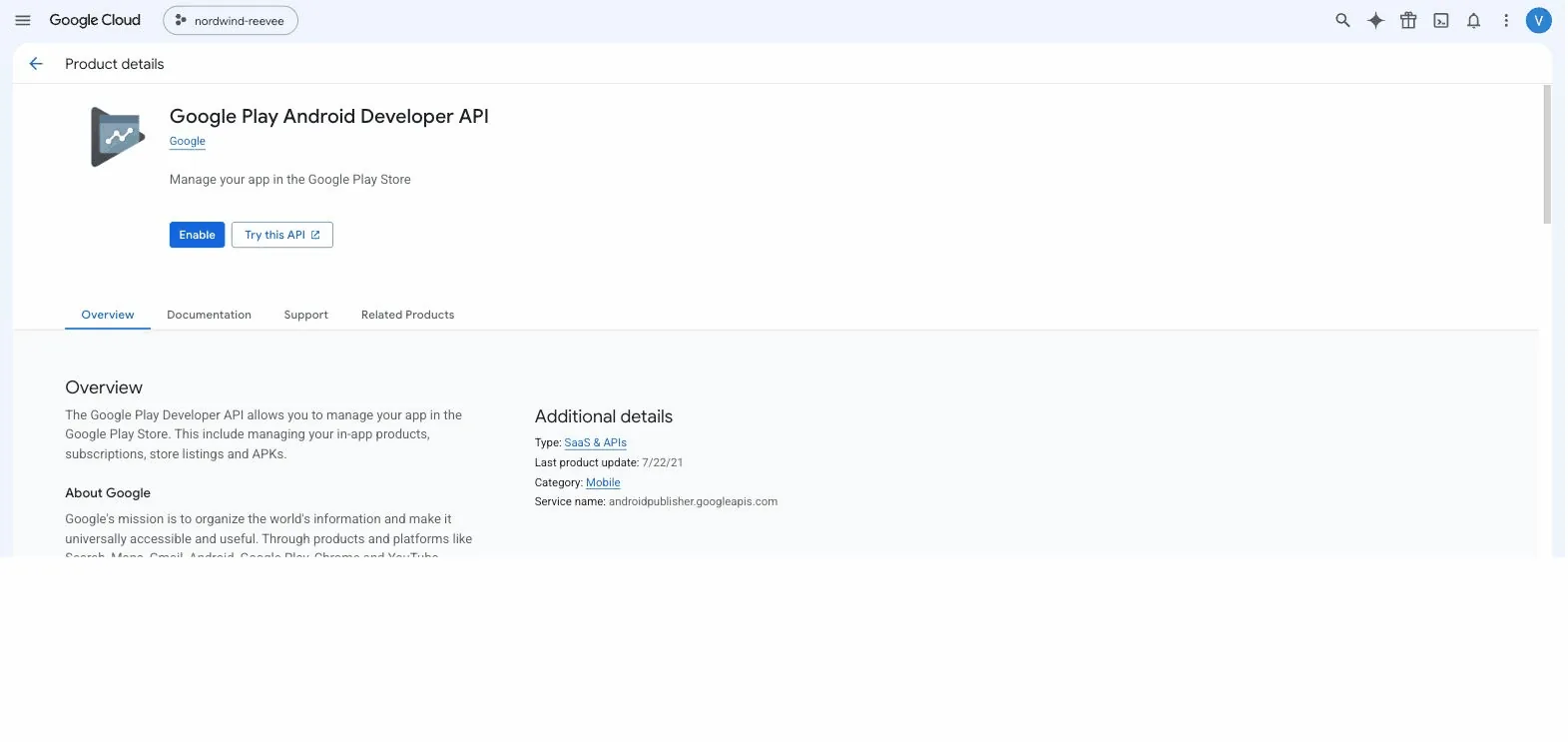 GUIDE
GUIDE
Create a service account
Cloud Console→IAM & Admin→Service Accounts→⊕ Create
Create a service account named 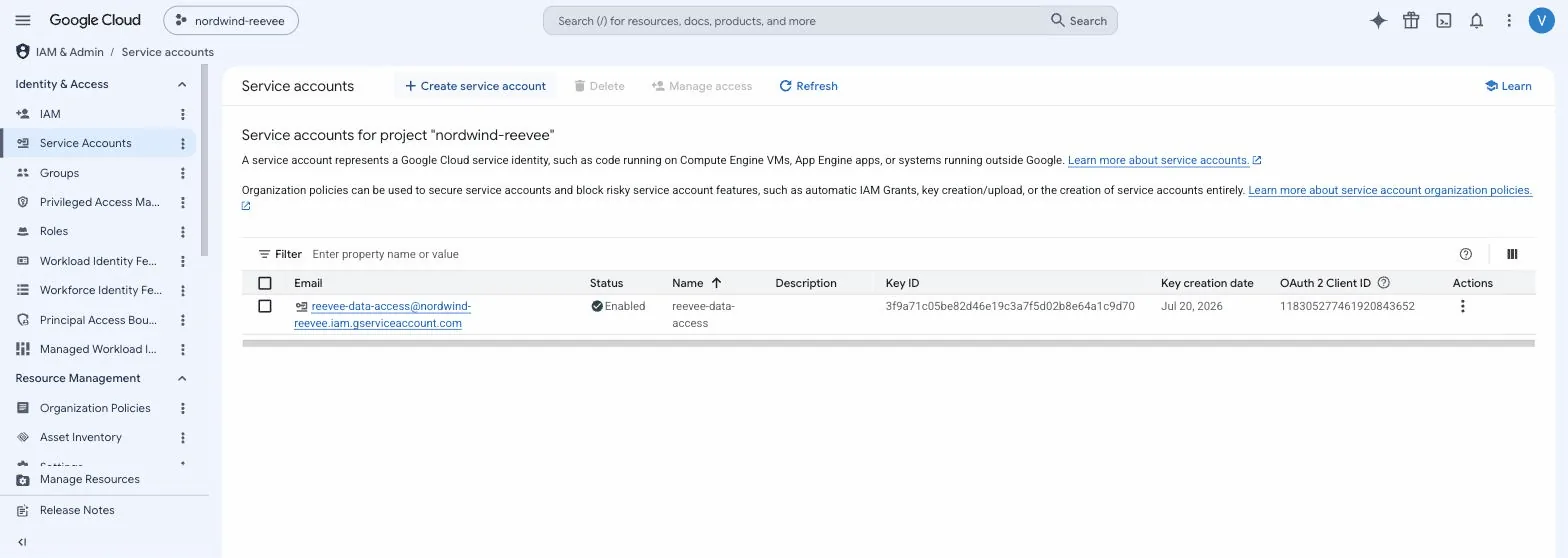 GUIDE
GUIDE
reevee-data-access. You can skip the optional role and user-access screens — permissions come from Play Console in step 5, not from Cloud IAM.Create and download the JSON key
Service account→Keys→Add Key→Create new key→JSON
Open the service account you just created, go to the Keys tab, and create a JSON key. The file downloads automatically.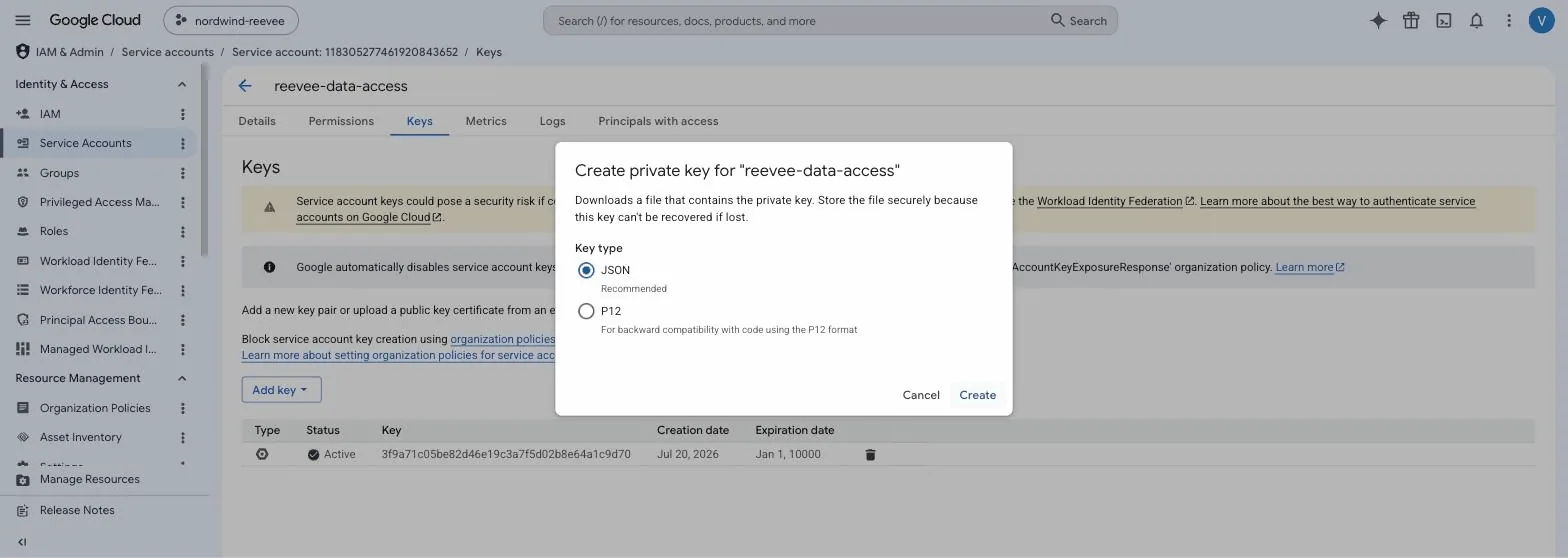 GUIDE
GUIDE
⚠ ImportantThis JSON file is the credential — anyone holding it can read your reports. Store it like a password. If it ever leaks, delete the key in this same screen and create a new one.
Grant it access in Play Console
play.google.com/console→Users and permissions→Invite new users
Now switch consoles. In Play Console, invite the service account's email (it looks like 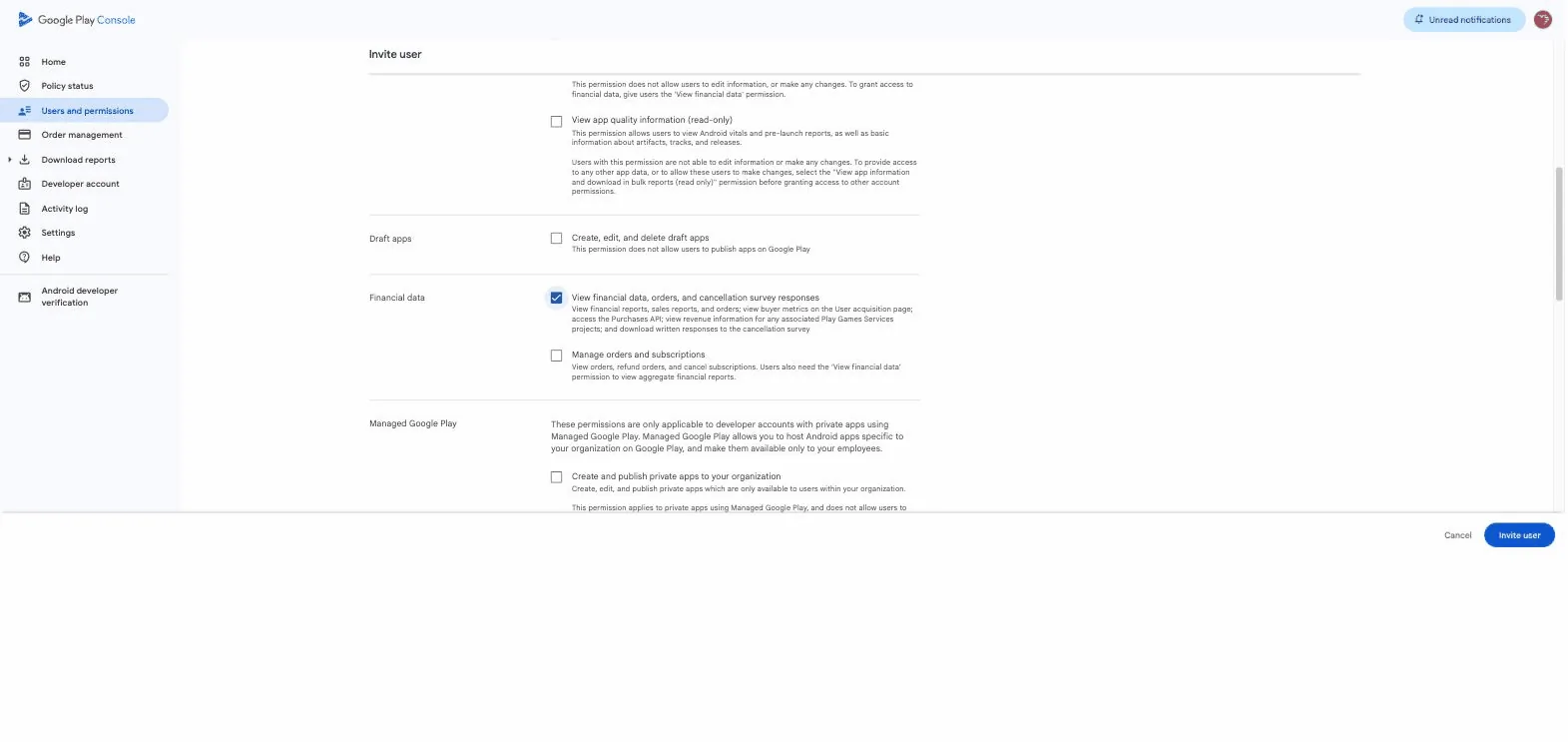 GUIDE
GUIDE
reevee-data-access@…iam.gserviceaccount.com — copy it from the JSON file's client_email field). Then switch to the Account permissions tab and check View app information and download bulk reports (read-only) and View financial data, orders, and cancellation survey responses, then press Invite user.📘 Good to knowPlay Console permissions can take a little while to propagate — if validation fails right after this step, wait a few minutes and retry. Google documents delays of up to 24 hours, though minutes is typical.
Find your reporting bucket ID
Play Console→Download reports→Financial
Google delivers monthly earnings reports through a Cloud Storage bucket. In Play Console, open Download reports → Financial and click Copy Cloud Storage URI. It looks like 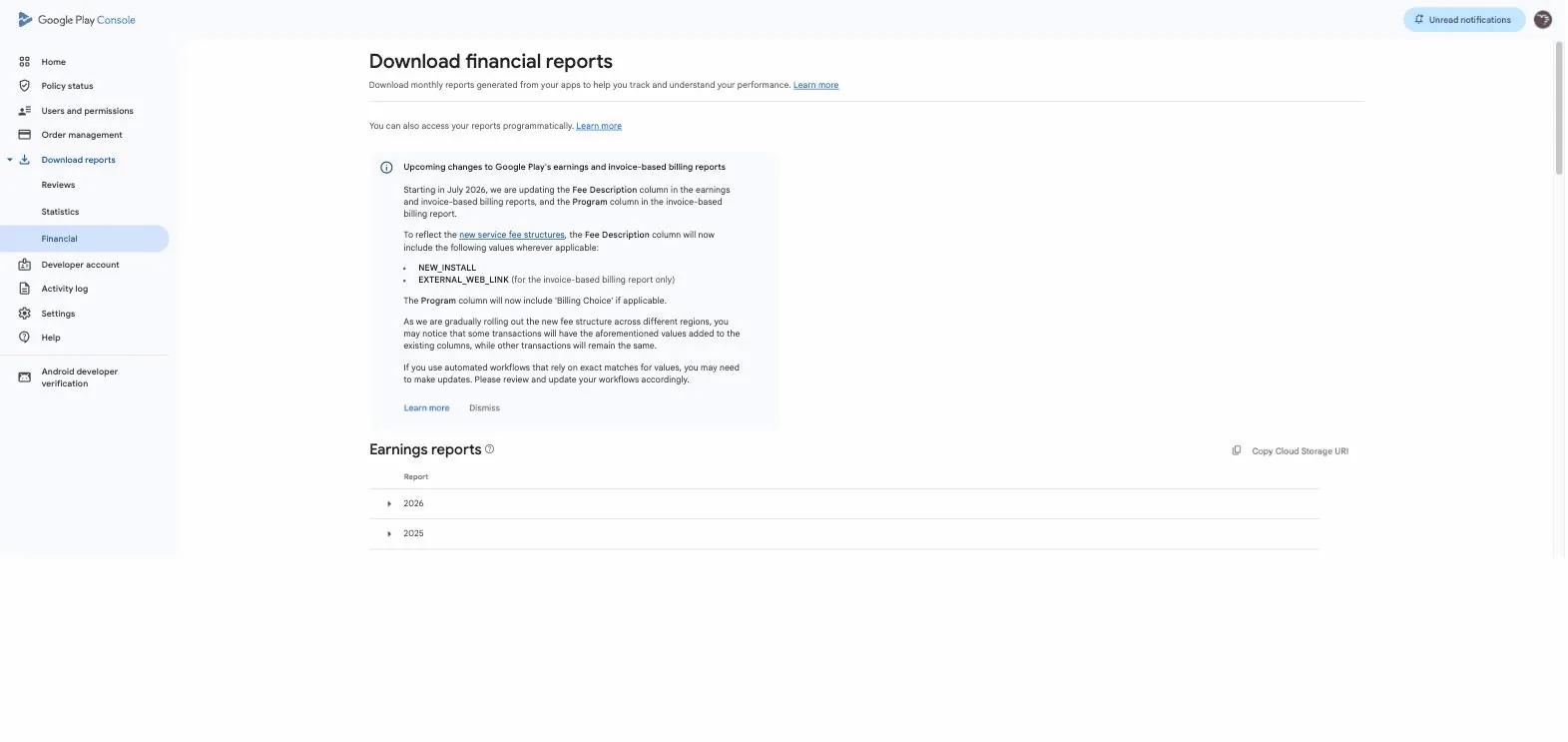 GUIDE
GUIDE
gs://pubsite_prod_rev_0123…/earnings/ — the part starting with pubsite_prod_rev_ is your bucket ID.Connect it in Reevee
Reevee→Settings→Integrations→Connect Google Play
In Reevee, open Settings → Integrations, click Connect Google Play, upload the JSON key file, and paste the bucket ID. Reevee validates against Google immediately, backfills your order history, and from then on new purchases stream in near real time via Google's developer notifications.GUIDE
Connect Google Play
Service account key
reevee-data-access-3f9a.json✓ uploaded
Reporting bucket ID
Validate & Connect
That's it.
Google data flows in two speeds: purchases in near real time, monthly earnings (the accounting truth) around the 5th of each month — Reevee reconciles both automatically. Also connecting Apple? That guide is here.