Setup guide · ~5 minutes
Connect App Store Connect
Four credentials, one visit to App Store Connect. The key you create is read-only — it can download reports, never touch your apps.
Sign in to App Store Connect
appstoreconnect.apple.com
Use an account with the Admin or Account Holder role — creating API keys requires it. If you only have a Developer-role account, ask your account holder to do steps 1–5 (they take two minutes).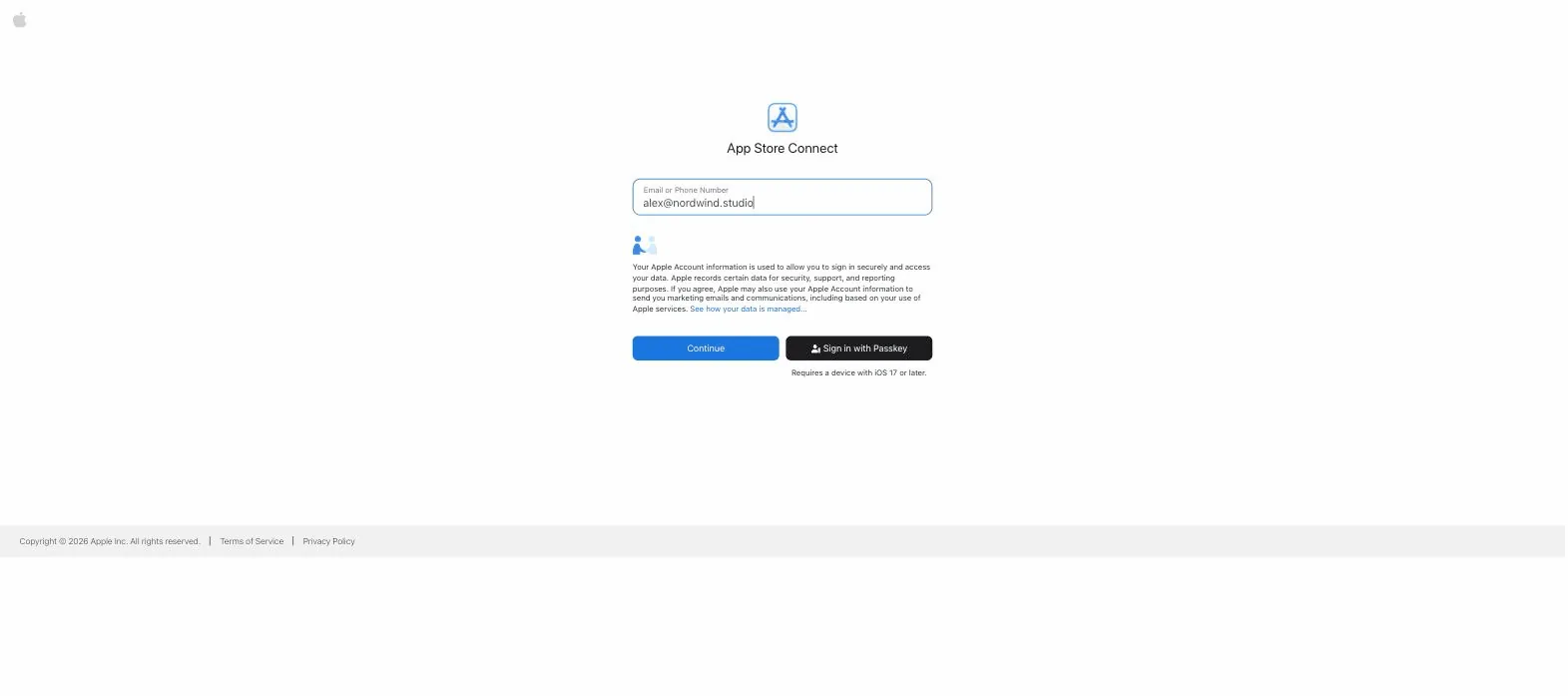 GUIDE
GUIDE
Open Users and Access
App Store Connect→Users and Access
Click Users and Access in the top navigation bar — it's there on every App Store Connect page.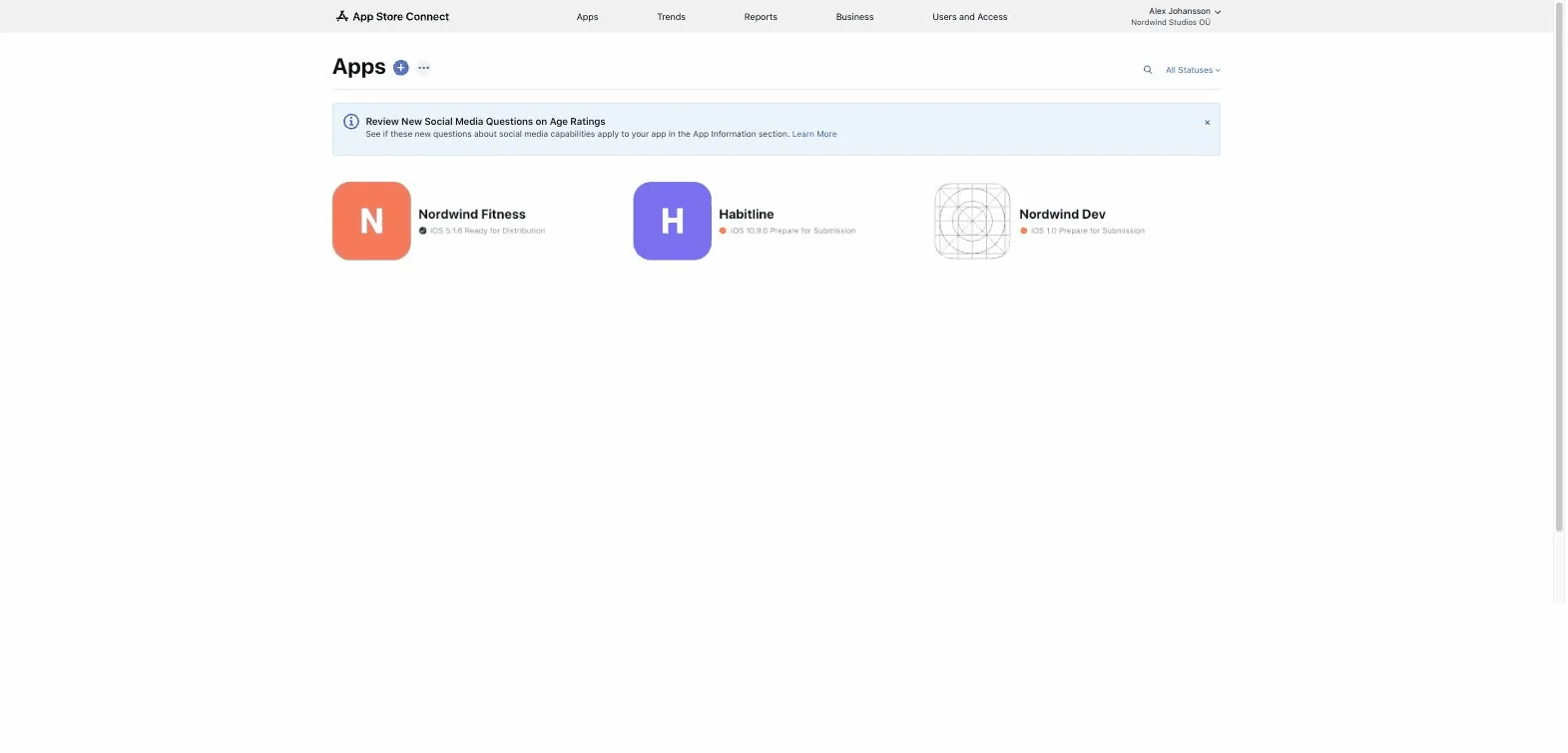 GUIDE
GUIDE
Go to the API keys
Users and Access→Integrations→App Store Connect API→Team Keys
Select the Integrations tab at the top, then App Store Connect API in the sidebar. You want Team Keys (not Individual Keys — those can't access financial reports).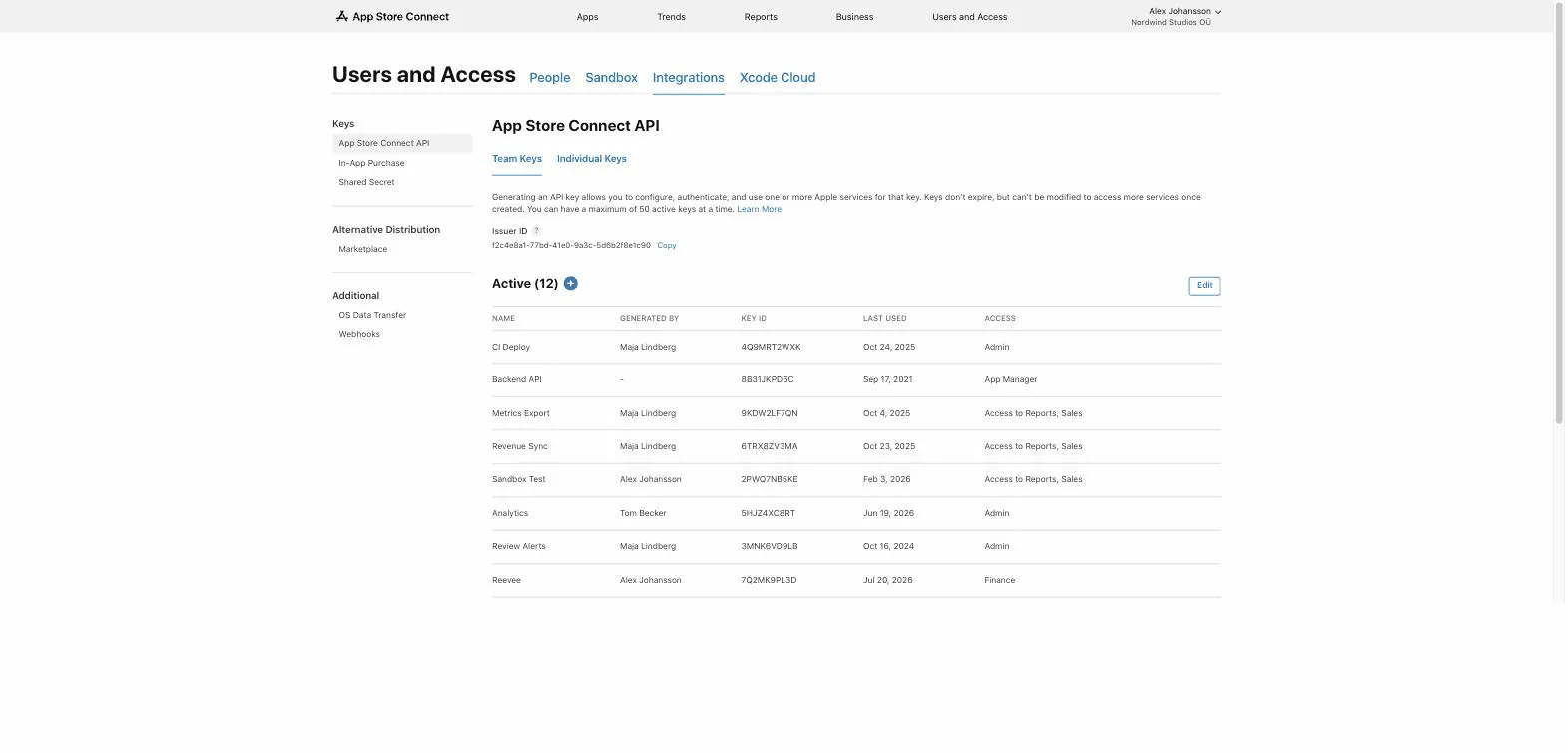 GUIDE
GUIDE
Generate the key with the Finance role
Team Keys→⊕ Generate API Key
Click Generate API Key. Name it 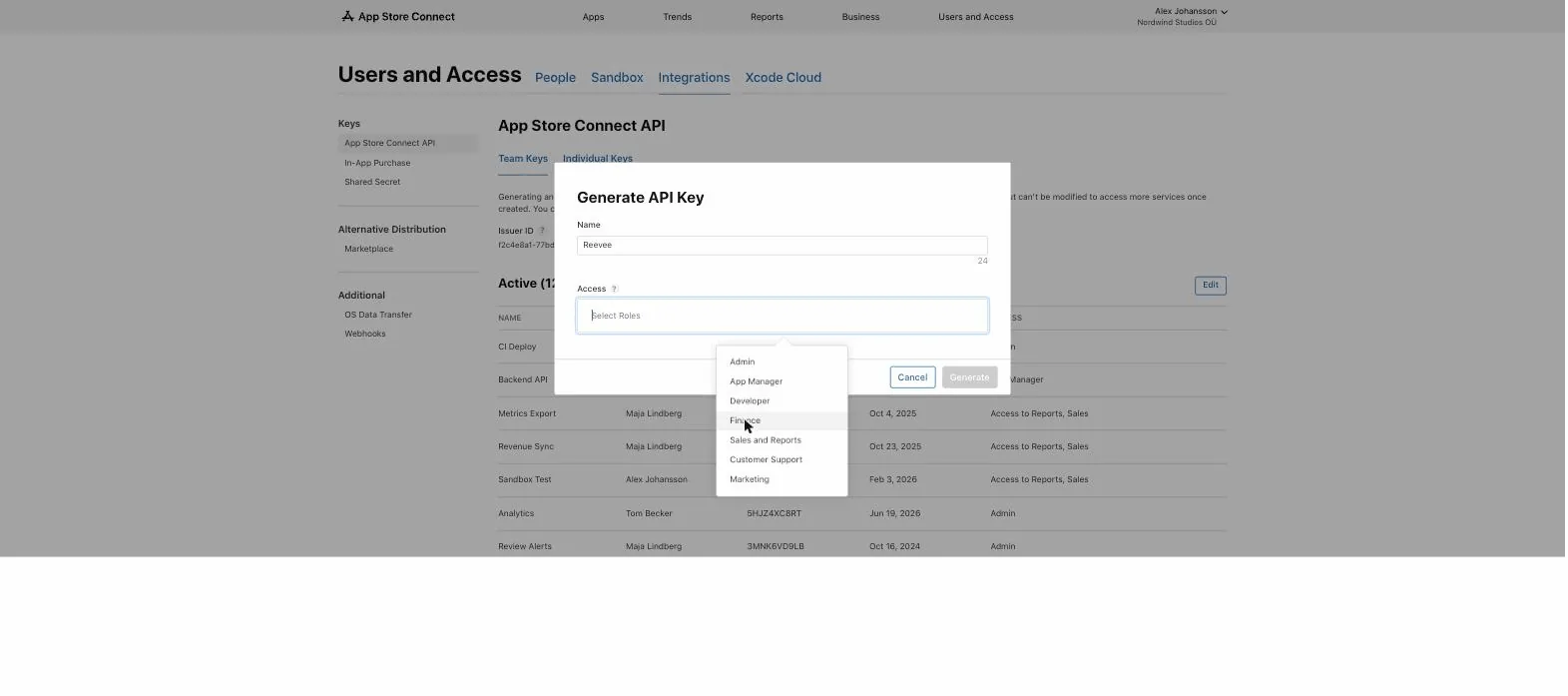 GUIDE
GUIDE
Reevee so you'll recognize it later, and under Access select the Finance role.⚠ ImportantThe role must be Finance. Sales, Developer, or Marketing roles cannot download financial reports — the connection will validate but return no revenue.
Download the .p8 file and copy both IDs
Team Keys→your new key
Your new key appears as a row in the Team Keys table. Click Download API Key on that row to get the 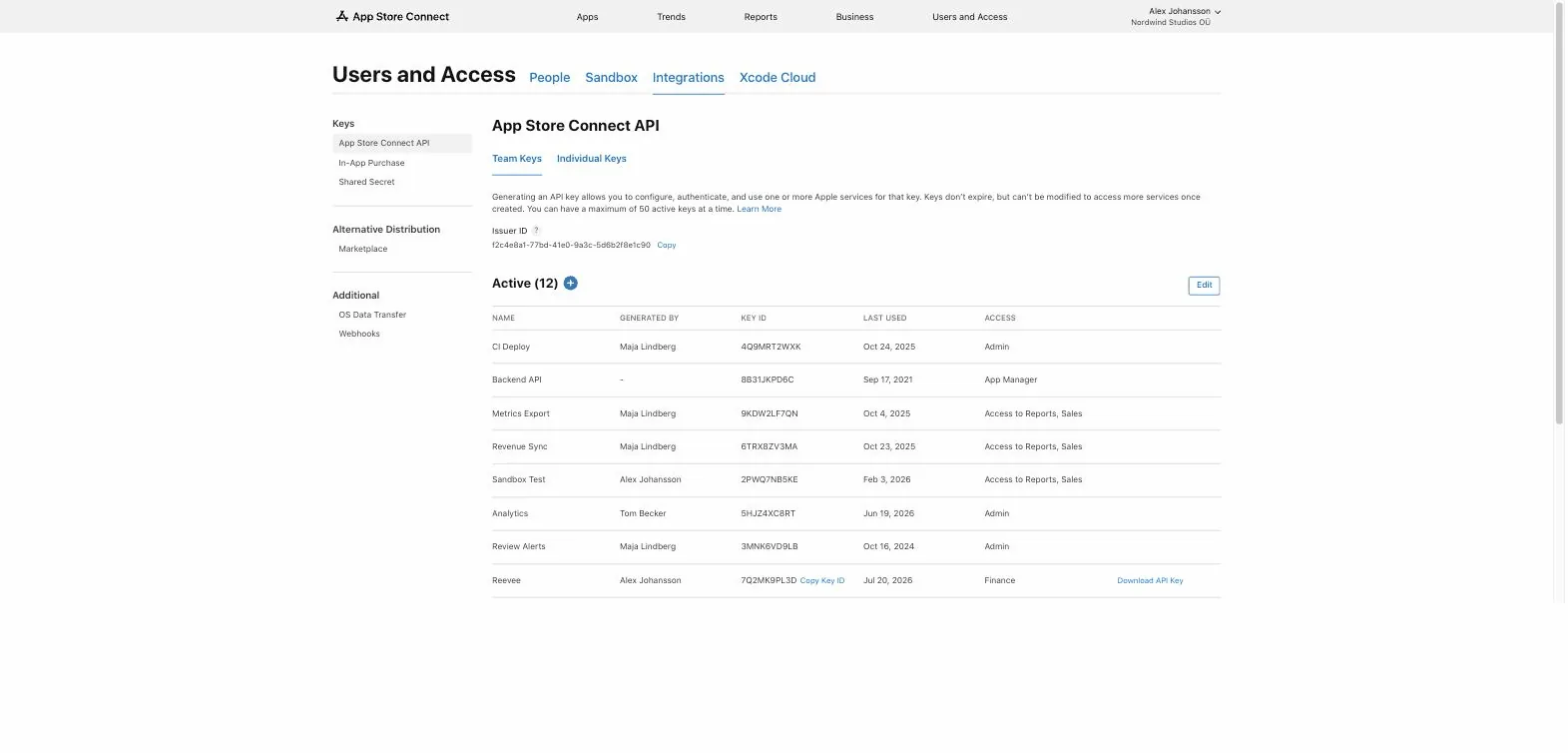 GUIDE
GUIDE
AuthKey_XXXXXXXXXX.p8 file, use Copy Key ID next to the key's ID (it appears when you hover the row), and copy the Issuer ID shown above the table (it's shared by all your keys).⚠ ImportantApple lets you download the .p8 file exactly once. If you lose it, you'll have to revoke the key and create a new one — save it somewhere safe.
Find your Vendor Number
App Store Connect→Payments and Financial Reports
Open Payments and Financial Reports. Your Vendor Number is the 8-digit number shown at the top left, under your legal entity name. Reevee needs it to request your sales reports.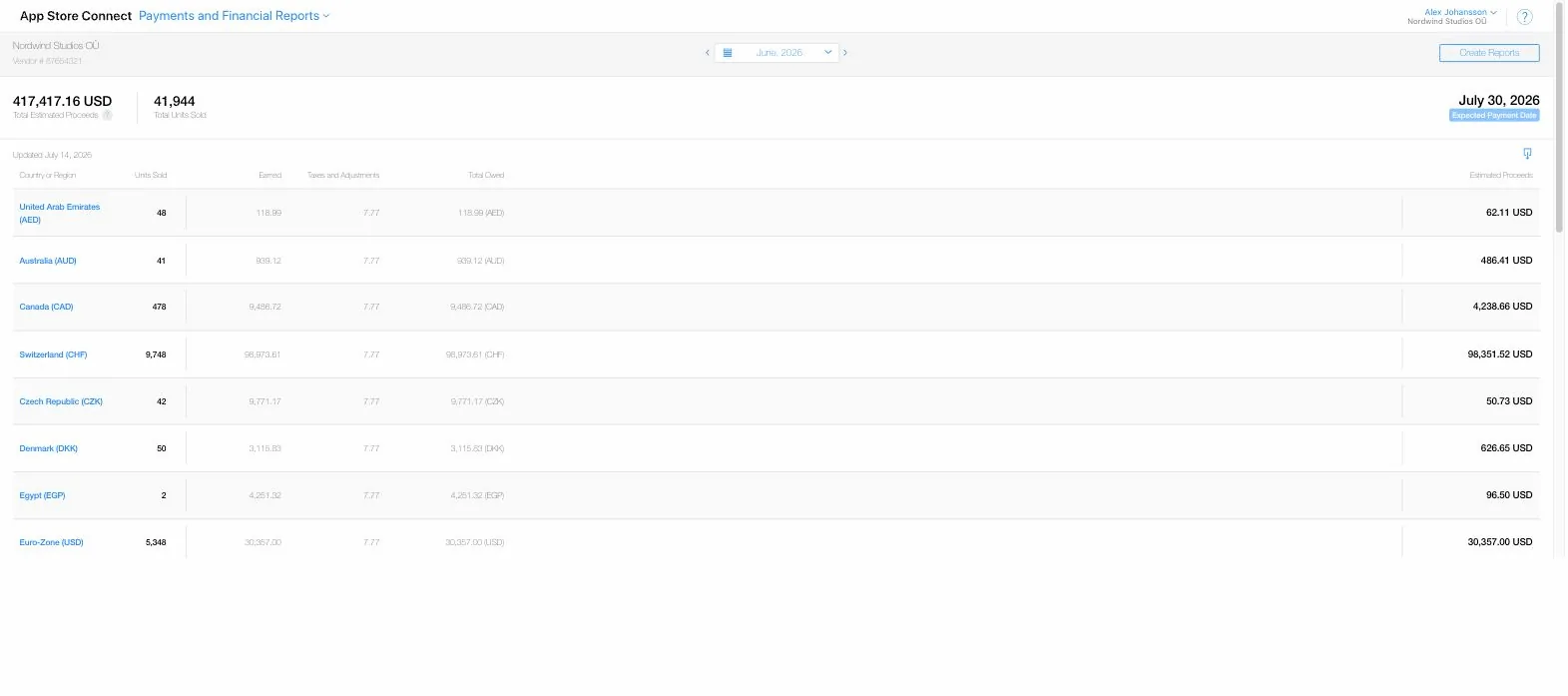 GUIDE
GUIDE
Paste everything into Reevee
Reevee→Settings→Integrations→Connect App Store
In Reevee, open Settings → Integrations and click Connect App Store. Paste the Key ID, Issuer ID, and Vendor Number, and paste the contents of the .p8 file (open it in any text editor — it starts with GUIDE
-----BEGIN PRIVATE KEY-----). Reevee validates the credentials against Apple immediately and starts the first sync.📘 Good to knowApple publishes daily reports on a 1–2 day delay — that's an Apple property, not a sync problem. Reevee always shows which date each store has reported through, so you'll never mistake the publishing lag for a revenue drop.
Connect App Store
Key ID
Issuer ID
Vendor Number
Private key (.p8 contents)
Validate & Connect
That's it.
The first sync backfills your history and usually finishes within a few minutes. Also connecting Google Play? That guide is here.